
Advertorial or Sponsorship User published Content does not represent the views of the Company or any individual associated with the Company, and we do not control this Content. In no event shall you represent or suggest, directly or indirectly, the Company's endorsement of user published Content.
The company does not vouch for the accuracy or credibility of any user published Content on our Website and does not take any responsibility or assume any liability for any actions you may take as a result of reading user published Content on our Website.
Through your use of the Website and Services, you may be exposed to Content that you may find offensive, objectionable, harmful, inaccurate, or deceptive.
By using our Website, you assume all associated risks.This Website contains hyperlinks to other websites controlled by third parties. These links are provided solely as a convenience to you and do not imply endorsement by the Company of, or any affiliation with, or endorsement by, the owner of the linked website.
Company is not responsible for the contents or use of any linked website, or any consequence of making the link.
The most effective subtitle generator software for Windows 11 power users

Photo by cottonbro studio from Pexels
Ever spent hours manually creating subtitles, only to realize there’s got to be a better way? You are absolutely right. Whether you’re editing YouTube videos, creating online courses, or producing professional content, the right subtitle generator can transform your workflow from tedious to effortless. For Windows 11 users with powerful rigs, desktop-based tools offer speed and precision that web alternatives simply cannot match. Let’s explore the best options that will save time and increase productivity.
Best desktop subtitle generators for Windows 11
Tools like Transkriptor, Aegisub, and Adobe Premiere Pro are some of the best desktop subtitle generators for Windows 11. Here is the detailed breakdown of each tool:
1. Transkriptor (online, subscription)
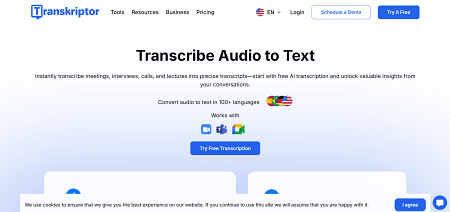
Transkriptor transcription and subtitle generation tool.
Transkriptor is a web-based transcription and subtitle generation platform designed for speed and convenience. Users can upload audio or video, automatically generate subtitles in 100+ languages, and export in formats like SRT or VTT.
Pros:
- Accessible from any device with an internet connection.
- Supports multiple languages and automatic translation.
- Simple interface for beginners and non-technical users.
Cons:
- Processing speed depends on internet upload/download rates.
2. Subtitle Edit (free, open source)
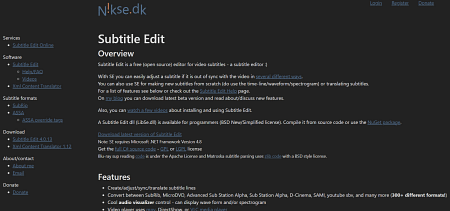
Subtitle Edit open-source subtitle editor.
Subtitle Edit has been a mainstay for professional and hobbyist editors for over a decade. As a free, open-source application, it offers powerful waveform and spectrogram views for precise timing, supports more than 200 subtitle formats, and can integrate with local or cloud-based AI engines to generate subtitles automatically. Its deep feature set makes it especially valuable for editors who need both speed and advanced manual editing capabilities.
Pros:
- Completely free with no licensing restrictions.
- Highly customizable, supporting a wide range of subtitle formats and workflows.
- Visual waveform and spectrogram for frame-accurate timing adjustments.
Cons:
- Interface can be intimidating for first-time users.
- Lacks built-in advanced AI transcription without external integration.
- Development pace depends on community contributions
3. Aegisub (free)
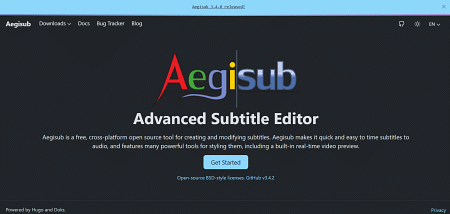
Aegisub advanced subtitle editor homepage.
Aegisub is the tool of choice for advanced typesetting, anime-style subtitles, and scenarios where visual design is as important as timing accuracy. While it does not feature native AI-powered subtitle generation, it pairs well with external transcription tools, allowing editors to import raw text and apply highly detailed formatting. Its karaoke and motion effects support make it unique among free tools.
Pros:
- Exceptional for styling, positioning, and creating animated text effects.
- Works well with external transcription pipelines for complex projects.
- Lightweight and runs smoothly even on older Windows hardware.
Cons:
- No built-in AI subtitle generation; requires manual input or imports.
- Steeper learning curve for advanced visual features.
- Interface has not seen significant modernization in recent years.
4. Adobe Premiere Pro speech-to-text (paid, subscription)
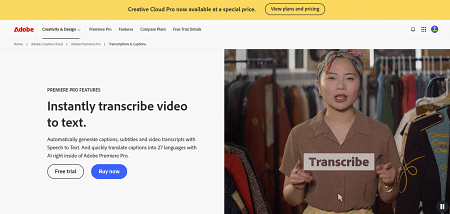
Adobe Premiere Pro automatic subtitle generation.
Adobe’s Speech-to-Text feature is fully integrated into the Premiere Pro timeline, enabling editors to generate subtitles without leaving their main editing environment. This integration means captions appear directly on the timeline, synced with cuts, and can be easily styled using Premiere’s Essential Graphics panel. It also supports multi-sequence batch processing, making it ideal for high-volume editing projects.
Pros:
- Direct integration, no exporting or importing required.
- Accurate AI transcription with speaker labeling.
- Supports batch processing for multiple sequences.
Cons:
- Requires a Creative Cloud subscription, which can be costly.
- Hardware-intensive; older PCs may struggle with real-time generation.
- AI model performance can vary for heavy accents or noisy environments.
5. DaVinci Resolve Studio transcription (paid, one-time)

DaVinci Resolve 20 video editing software homepage.
DaVinci Resolve Studio’s transcription tool offers an efficient way to generate subtitles directly in the edit or cut pages, eliminating the need for external applications. Its strength lies in handling multiple interviews or documentary footage in one project, with time-coded captions that remain synced even during major timeline edits. Resolve’s color grading and editing tools also make it a one-stop solution for post-production.
Pros:
- One-time payment with no recurring subscription.
- Built-in transcription means fewer external workflow steps.
- Handles large, multi-track projects without slowing down.
Cons:
- Transcription is only available in the paid Studio version.
- Editing captions can be less intuitive than in dedicated subtitle tools.
- Limited styling options compared to specialized subtitle software.
6. EZTitles (paid, professional license)
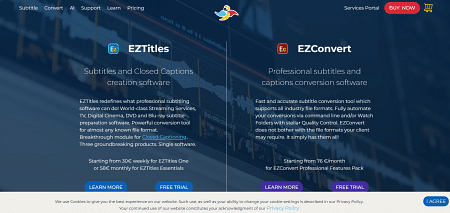
EZTitles and EZConvert professional subtitle software.
EZTitles is favored by broadcasters and localization teams who need strict compliance with industry standards. It supports live subtitling, real-time preview, and frame-accurate time-coding, along with specialized export formats for television networks. Its quality assurance tools check for on-screen readability, character limits, and regulatory compliance before finalizing captions.
Pros:
- Broadcast-standard compliance with QA checks.
- Live subtitling support for events and news.
- Real-time preview ensures timing and styling accuracy.
Cons:
- Higher licensing cost compared to other tools.
- Overkill for small-scale or casual projects.
- Steeper learning curve for non-broadcast users.
According to the Wistia 2024 State of Video Report, 18% of businesses now leverage AI tools for their video content production, showing how automation is becoming a core part of professional workflows. For Windows 11 power users, this trend makes desktop subtitle generators even more valuable, offering faster AI-powered transcription, better integration with editing software, and greater control over project quality compared to web-based tools.
Why power users prefer desktop subtitle generators
Windows 11 power users prefer desktop subtitle generators because they deliver superior control, speed, and workflow compatibility compared to web-based alternatives. Desktop applications harness local hardware acceleration to process audio and video files, completely bypassing the latency and bandwidth constraints that plague online platforms.
This means a 60-minute 4K video can be processed in minutes rather than hours, even with complex language models running in the background. For power users equipped with high-end GPUs, multi-threaded CPUs, and NVMe storage, these applications deliver near real-time subtitle generation without consuming cloud credits, facing processing throttles, or dealing with shared resource limitations that slow down web-based tools.
Advantages of desktop subtitle generators for Windows 11 users:
- Full hardware utilization: Access to GPU acceleration for faster transcription and alignment.
- Offline capability: Generate subtitles without internet access, ideal for field work or confidential projects.
- No file size limits: Process large video files without cloud storage restrictions.
- Better integration: Direct plugins for editing software, reducing export/import overhead.
- Enhanced privacy: Sensitive footage never leaves the local machine.
For long-form video editors working with multiple camera angles, surround sound, or high-bitrate footage, the ability to generate subtitles entirely offline is often the deciding factor in choosing desktop software over a browser-based tool.
Desktop vs. web-based subtitle generators
When you’re choosing between desktop and web-based subtitle generators, the main differences show up when you’re working on bigger or more complex projects. Here’s how they stack up in real-world use:
- Desktop subtitle tools run on your own computer, using your CPU/GPU for processing. This means faster turnaround, offline use, and full control over sensitive files. They’re ideal for heavy workloads or when security is critical.
- Web-based subtitle tools work in the browser, with processing done in the cloud. They’re easier to start with (no installs), work from any device, and are great for occasional or small projects, but they depend on internet speed and often have usage limits.
Speed
- Desktop: Uses CPU/GPU locally; fastest on 4K/8K.
- Web-based: Slower upload, processing and download times depend on your internet connection.
Workflow
- Desktop: Edit inside Premiere or Resolve with no exports.
- Web-based: Requires exporting video, uploading, processing and then re-importing.
Integration
- Desktop: Native plugins and timeline sync.
- Web-based: Limited handoff; may cause formatting mismatches.
Privacy and security
- Desktop: Files stay on the device under IT control.
- Web-based: Uploading footage to third-party servers can pose data risks.
Offline use
- Desktop: Full capability without internet.
- Web-based: Needs a stable internet connection at every step.
File limits
- Desktop: Handles very large projects.
- Web-based: Often has file size or length restrictions.
Cost at scale
- Desktop: One-time or annual license; no per-minute fees.
- Web-based: Subscription or per-minute fees can add up for heavy users.
Reliability
- Desktop: Predictable on a tuned workstation.
- Web-based: Cloud server speeds vary depending on demand.
Conclusion
According to Wyzowl’s Video Marketing Statistics 2025, 51% of marketers say they’ve used AI tools for video creation or editing, while 49% have not, highlighting how AI adoption is now a mainstream part of video workflows. For Windows 11 power users, desktop subtitle generators fit perfectly into this trend, delivering faster processing, offline capability, better security, and seamless integration with editing software. They handle large files without limits and fully leverage your PC’s hardware, making them ideal for high-volume or complex projects while saving hours on every production.


